



Sharing your authentic experiences online has become the most powerful way to guide fellow consumers and reward exceptional service. Knowing how do you leave a review on google enables you to actively shape the digital reputation of your favorite neighborhood spots. This comprehensive operational guide by Good Review Service breaks down the exact technical processes for publishing feedback across both desktop and mobile platforms. By following these verified steps from
What You Need Before Leaving a Google Review
Before you can publish a testimonial on any local business profile, Google implements a few fundamental user requirements to maintain data integrity and prevent anonymous platform spam. The absolute core requirement is an active, verified Google Account, such as a standard @gmail.com address or a Google-managed corporate workspace profile. Anonymous feedback is entirely blocked; your public Google profile name and account avatar will be displayed directly alongside your published text and star selection.
Furthermore, you need a stable internet connection and a clear recollection of your specific customer transaction. Google’s modern anti-fraud filters actively monitor profile behavior, meaning your review is much more likely to pass automated moderation if you are physically near the business location or have a history of legitimate account activity.
How to Leave a Review on Google: Step-by-Step
Leaving a Google review is a simple process that only takes a few minutes. Whether you’re reviewing a restaurant, hotel, salon, local business, or service provider, you can submit your feedback directly through Google Maps. Follow the steps below to leave a review and share your experience with other potential customers.
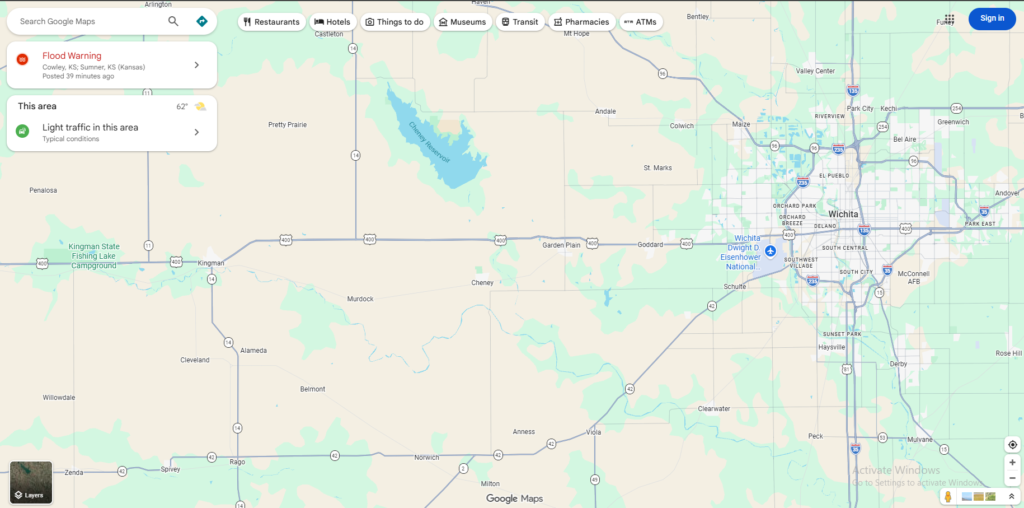
Step 1: Open Google Maps
Start by opening Google Maps on your computer, smartphone, or tablet. You can access it through the Google Maps app or by visiting the Google Maps website in your browser.
Make sure you’re signed in to your Google account, as you’ll need an active account to submit a review.
Step 2: Search for the Business or Location
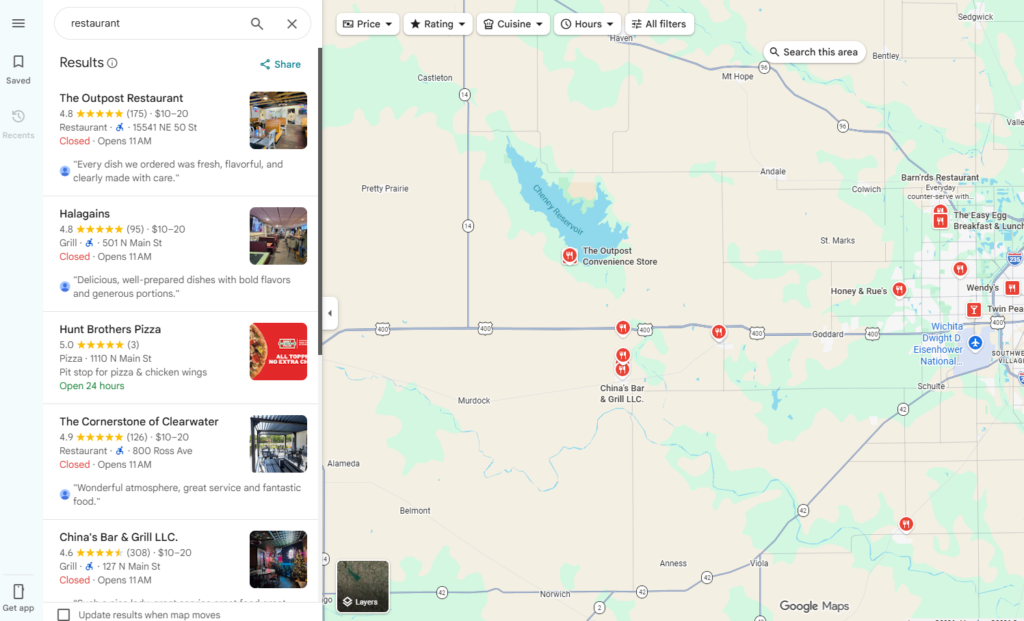
In the search bar at the top of Google Maps, enter the name of the business or location you want to review.
For example, you can search for a restaurant, hotel, nail salon, dental office, retail store, or any other business listed on Google Maps.
Alternatively, you can manually locate the business by navigating through the map and clicking on its listing.
Step 3: Select the Correct Business Profile
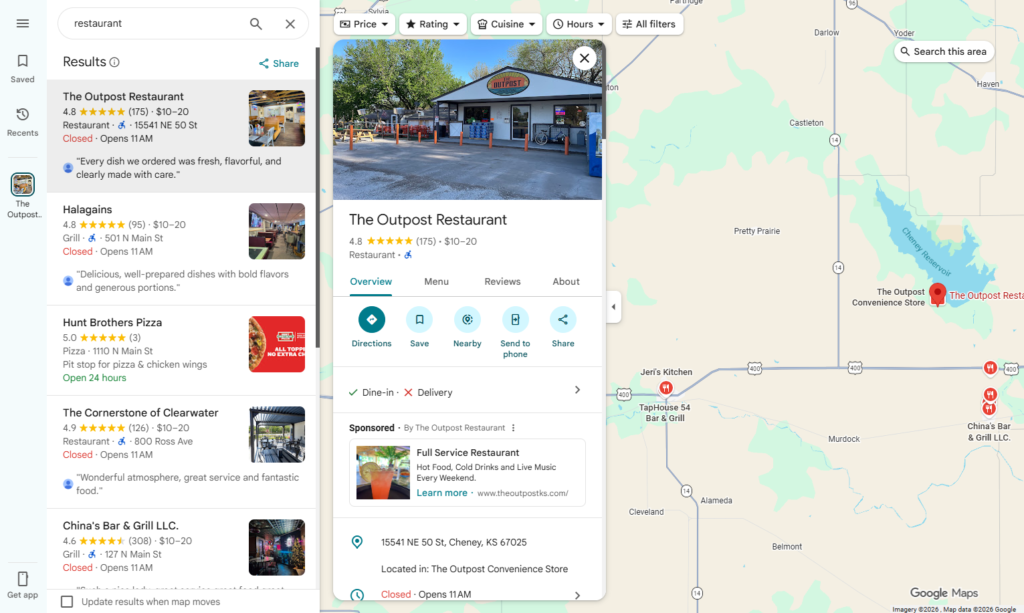
Once the search results appear, click on the correct business profile.
Before continuing, verify that you have selected the right location by checking details such as the business name, address, phone number, and photos. This ensures your review is posted to the intended business.
Step 4: Open the Reviews Section
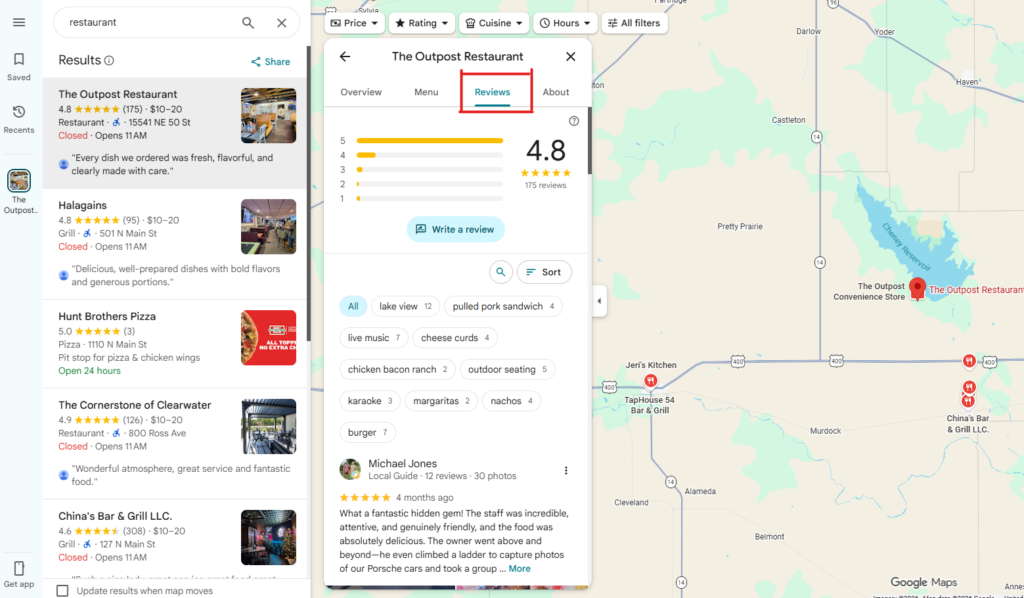
After opening the business profile, scroll down or navigate to the Reviews section.
On desktop devices, you may find the reviews tab on the left-hand side of the business profile. On mobile devices, you may need to scroll down until you see customer reviews.
Click or tap the reviews section to continue.
Step 5: Click “Write a Review”
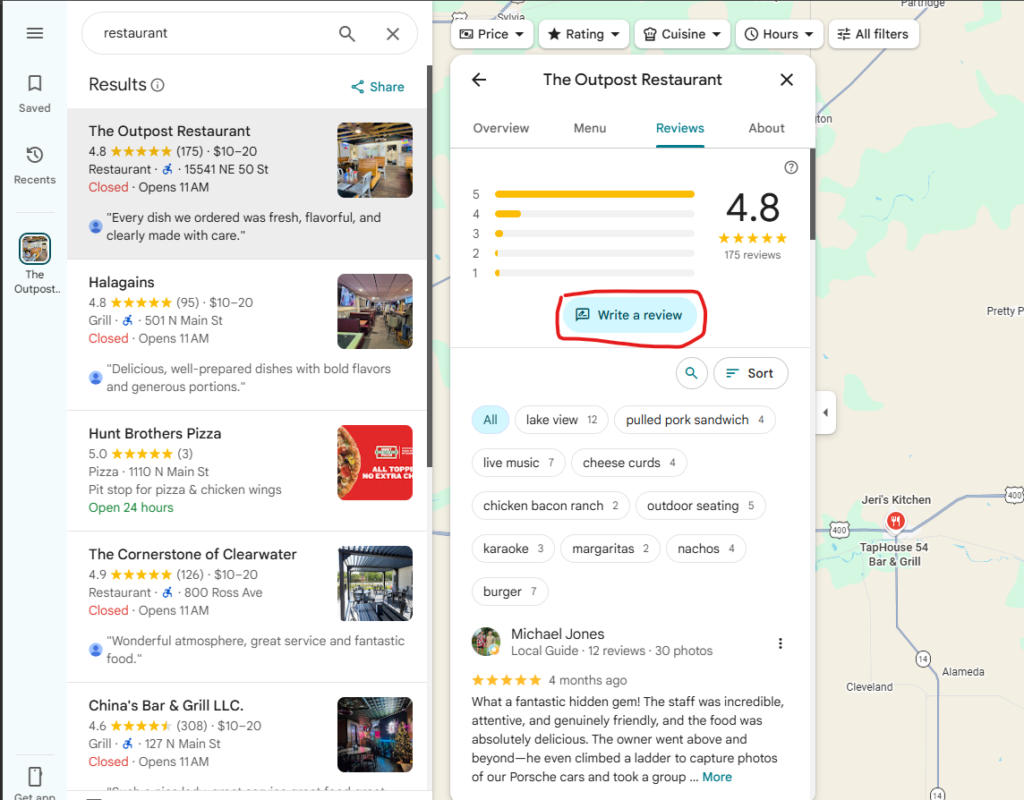
Within the reviews area, look for the Write a Review button and click it.
Google will open a review form where you can rate the business and provide feedback about your experience.
Step 6: Choose a Star Rating
Select a star rating from 1 to 5 stars based on your experience:
- 5 stars – Excellent experience
- 4 stars – Good experience
- 3 stars – Average experience
- 2 stars – Below expectations
- 1 star – Poor experience
Choose the rating that best reflects your honest opinion of the business.
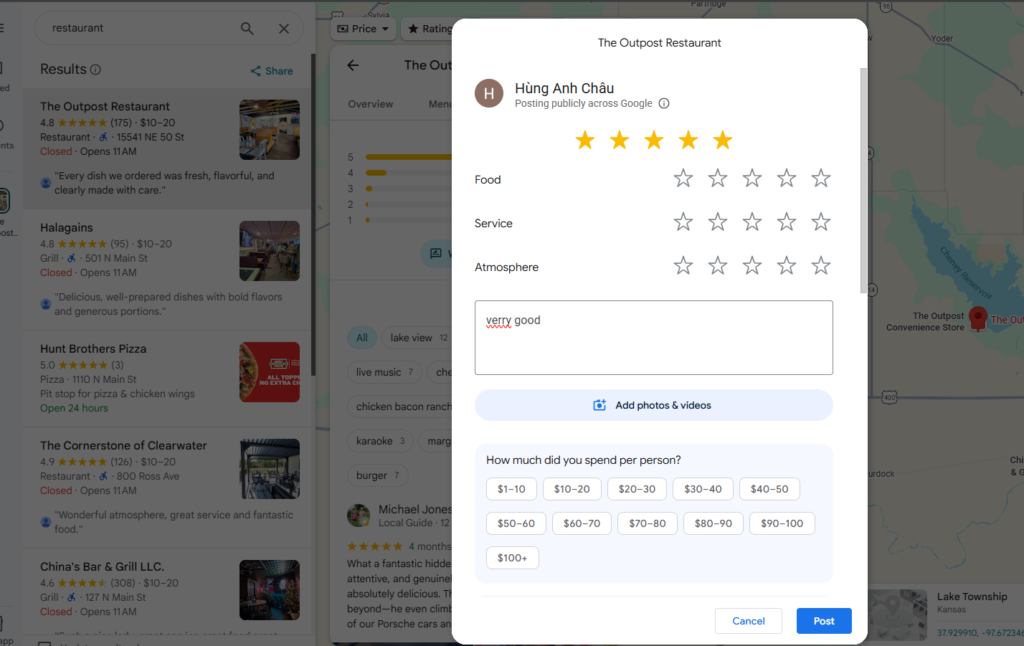
Step 7: Write Your Review
In the review text box, describe your experience with the business.
Consider mentioning details such as:
- The quality of the service or product
- Customer service experience
- Staff professionalism
- Cleanliness and atmosphere
- Pricing and overall value
For certain businesses, such as restaurants, hotels, or attractions, Google may ask additional questions related to your visit. Complete any relevant fields to provide more helpful information for future customers.
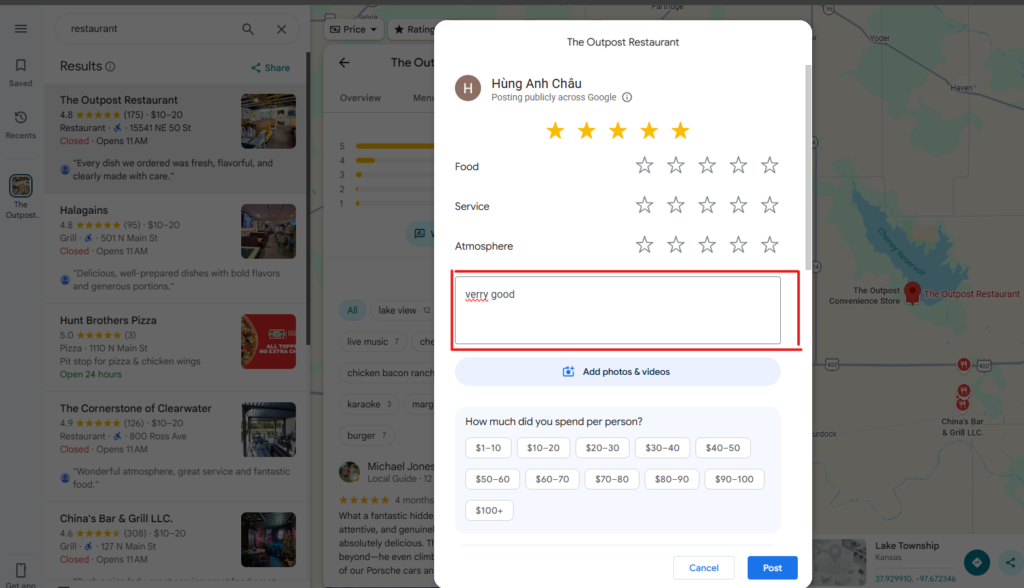
Step 8: Add Photos (Optional)
If you’d like, you can upload photos along with your review.
Adding photos can make your review more useful and credible because it gives other users a better understanding of what to expect. Examples include photos of meals, facilities, products, completed services, or the business location.
While optional, photos often increase the value of a review.
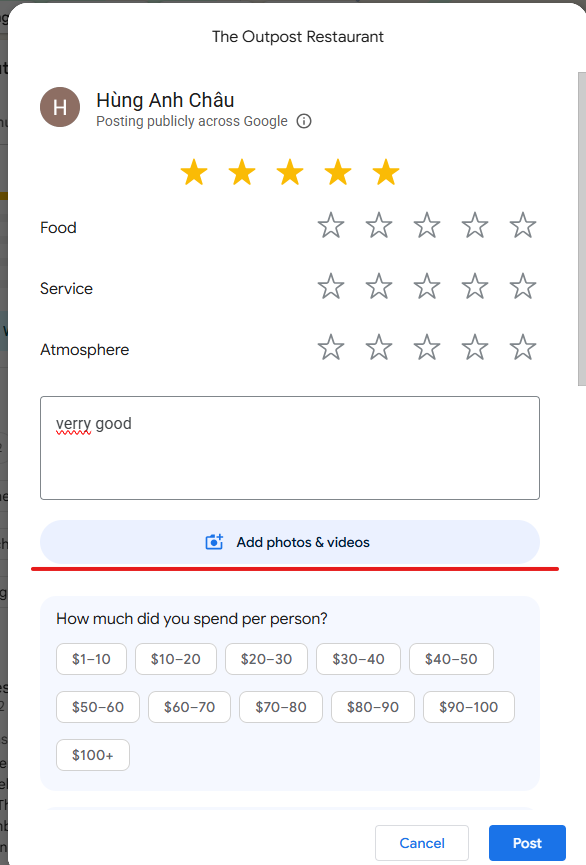
Step 9: Click “Post” to Publish Your Review
After completing your rating and review, click the Post button to publish it.
Your review will then be submitted to Google and may appear publicly on the business profile shortly afterward.
If you notice a mistake later or want to update your feedback, you can return to the review and select Edit Review. After making your changes, simply click Post again to publish the updated version.
Learn more:
- How to Get More 5 Star Reviews and Grow Your Business Reputation
- Best Review Sites in 2026 for Businesses and Brands
Why Google Reviews Matter
Public consumer feedback serves as the ultimate economic fuel for local commercial ecosystems, driving both consumer decisions and modern search engine behavior.
Help Other Users Make Better Decisions
Online testimonials act as a collective, democratic shield that protects everyday consumers from wasting their time and money on sub-standard services. Reading a detailed narrative about a company’s hidden fees, rude personnel, or defective products allows future buyers to steer clear of problematic brands and invest in ethical merchants.
Support Local Businesses
Small family shops and independent contractors do not possess massive corporate marketing budgets to run continuous television or paid social commercials. For these local heroes, a steady stream of positive feedback from real neighborhood residents is their single most effective tool to stand out, build organic trust, and fill their daily schedules.
Improve Google Search Results Accuracy
Search engine algorithms treat user feedback as objective first-party validation regarding a physical shop’s true operational status and community relevance. When citizens routinely publish accurate descriptions of their real-world visits, it trains the search engine to display the highest-quality, most reliable local options at the top of every map search.
Learn more: 10 Blueprints on How to Get More Google Reviews and Dominate Your Local Market 2026
Final Thoughts
Now that you know how do you leave a review on Google, sharing your experience with a business is quick and easy. By following the steps outlined above, you can help other customers make informed decisions while providing valuable feedback to the businesses you visit.
For business owners, positive Google reviews play a critical role in building trust, improving local search visibility, and attracting new customers. If you’re looking to generate more authentic customer reviews and strengthen your online reputation, Good Review Service offers professional review management and reputation marketing solutions designed to help local businesses grow.